EVCC

Introduction

Your WARP Charger is compatible with EVCC. EVCC is an open-source solution that allows you to easily use the excess from your photovoltaic system to charge your electric car. EVCC also implements additional APIs that allow you, for example, to prioritize a home battery or charge your electric car to a desired charge level. More information about EVCC can be found at evcc.io, detailed documentation, a support forum, and the source code in the GitHub repository.
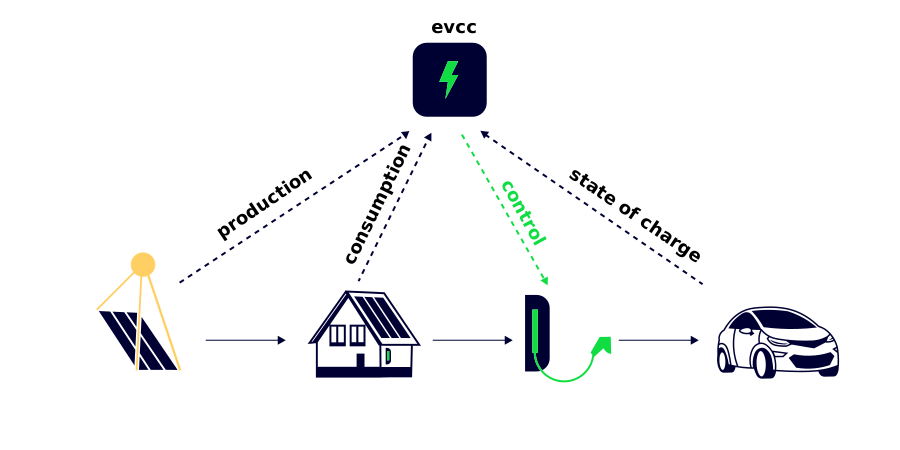
This guide shows you how to set up EVCC, link your WARP Charger with EVCC, and how additional components, such as an electric car, can be integrated. For this you only need your WARP Charger and a computer on which EVCC should run. In the following, we use a Raspberry Pi. EVCC can also be installed on other platforms, but since the control of the WARP Charger should be as robust as possible, it makes sense to dedicate a system solely for this purpose. The necessary meters that measure the power generation of a PV system as well as the total consumption of the house can be configured directly in EVCC or initially simulated.

EVCC Schema

Charge control with EVCC

Preparing the Raspberry Pi

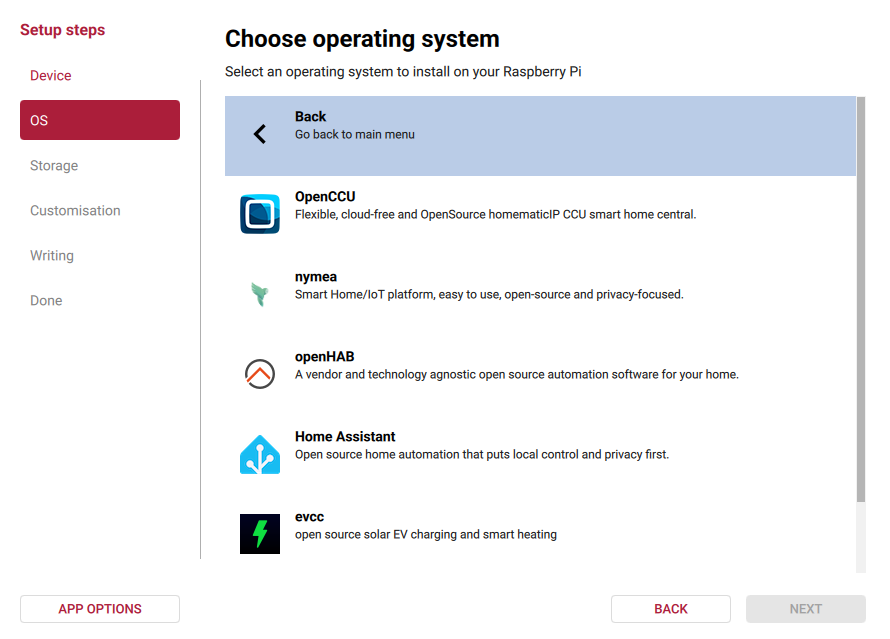
First, you need to prepare an SD card with the operating system for the Raspberry Pi. The easiest way is with the Raspberry Pi Imager. The RPi Imager downloads the selected operating system and flashes it onto a connected micro SD card. If you are familiar with using a Linux console, we recommend the Raspberry Pi OS Lite, which can be found in the Imager under Choose OS -> Raspberry Pi OS (other). If you want to work with a graphical interface, you can use the regular Raspberry Pi OS. With the key combination CTRL+SHIFT+X you can open the advanced options to, for example, enable the SSH server or configure a WiFi network, language settings, and a hostname. After selecting the SD card and clicking Write, the imager flashes the operating system onto the micro SD card.

Raspberry Pi Imager Screenshot

Raspberry Pi Imager

You can now insert the micro SD card into the Raspberry Pi and boot it. After logging in if necessary (via SSH to pi@raspberry, or in the text console as pi; password is raspberrypi in both cases), you should first follow the setup wizard if you booted the graphical interface. In both cases, you should then update the system in the console with sudo apt update and sudo apt upgrade. After that, you can restart the Pi with sudo reboot.

Installing the MQTT Broker

Communication between the WARP Charger and EVCC requires the use of an MQTT broker. On the Raspberry Pi, the Mosquitto MQTT broker can be installed with sudo apt install mosquitto mosquitto-clients. Mosquitto starts immediately and automatically at every system start.

Since Mosquitto 2.0.0, it must be explicitly allowed for Mosquitto to accept connections on network interfaces. To do this, you must create a new configuration file named /etc/mosquitto/conf.d/default.conf with a text editor of your choice, for example with nano* on the console, and insert the following content:

listener 1883

Additionally, Mosquitto 2.0.0 by default only allows connections from configured users. You can create a user with mosquitto_passwd. Alternatively, you can additionally insert

allow_anonymous true

in /etc/mosquitto/conf.d/default.conf to allow connections without username and password.

For the changed configuration to be used, you must restart Mosquitto with sudo systemctl restart mosquitto, or if you want to start Mosquitto manually, i.e. not via the systemd service, you must use mosquitto -c /etc/mosquitto/mosquitto.conf.

Linking the WARP Charger

More information about MQTT configuration can be found in the API documentation.

In the web interface of the WARP Charger, you can now configure the connection to the MQTT broker. To do this, you must enable the connection under Interfaces -> MQTT and enter the host (raspberrypi if you haven't changed it). Alternatively, you can use the IP address of the Pi. You can read this in the console with ip -brief a: under eth0 for the LAN connection, or under wlan0 for the WiFi connection. Then you can apply the configuration change by clicking Save. The web interface will then restart.

MQTT UI

To test whether the connection to the MQTT broker works, you can first check the status page of the web interface. The status of the MQTT connection should be Connected. If this is not the case, you can check the event log to see what the problem is. As a further test, you can read the received messages in the Pi's console: mosquitto_sub -v -t 'warp/#' or for a WARP2 Charger mosquitto_sub -v -t 'warp2/#' and for a WARP3 Charger mosquitto_sub -v -t 'warp3/#' delivers received messages from all chargers that are connected to the broker.

Nothing else needs to be configured on the WARP Charger.

note

In particular, external control should be disabled under Energy Management -> Chargers. External control at this point only refers to load management between WARP Chargers. If PV excess charging is to be done via EVCC, then excess charging must also be disabled under Energy Management -> PV Excess Charging. Excess charging can only be controlled either by the WARP Charger itself or by EVCC. Not by both simultaneously.

Linking the WARP Energy Manager 1.0 (optional)

If you have installed a WARP Energy Manager 1.0 and the associated contactor for phase switching, you can have EVCC control the phase switching to better utilize your PV excess.

To do this, you must first configure the MQTT connection of the Energy Manager, analogous to the WARP Charger. You can test the connection again in the Pi's console: mosquitto_sub -v -t 'wem/#' delivers received messages from all Energy Managers that are connected to the broker.

So that EVCC can later control the WARP Energy Manager, you must change the switching mode to external control (EVCC) under Energy Manager -> Settings. The PV excess charging of the Energy Manager is then deactivated, since EVCC should take over this task.

note

If a WARP Energy Manager 1.0 is used by EVCC to perform phase switching of a WARP2 charger, then no settings for PV excess charging or load management should be made on the WARP Energy Manager. These functions would otherwise compete with the control by EVCC.

EVCC WARP Energy Manager

Energy Manager configuration

Installation and Configuration of EVCC

The installation and configuration of EVCC on a Raspberry Pi is explained in the EVCC documentation. Alternatively, EVCC can be installed as a Docker container as described here. If you want to test the connection between EVCC and the WARP Charger without setting up the necessary meters, you can simulate them as described in the next section.

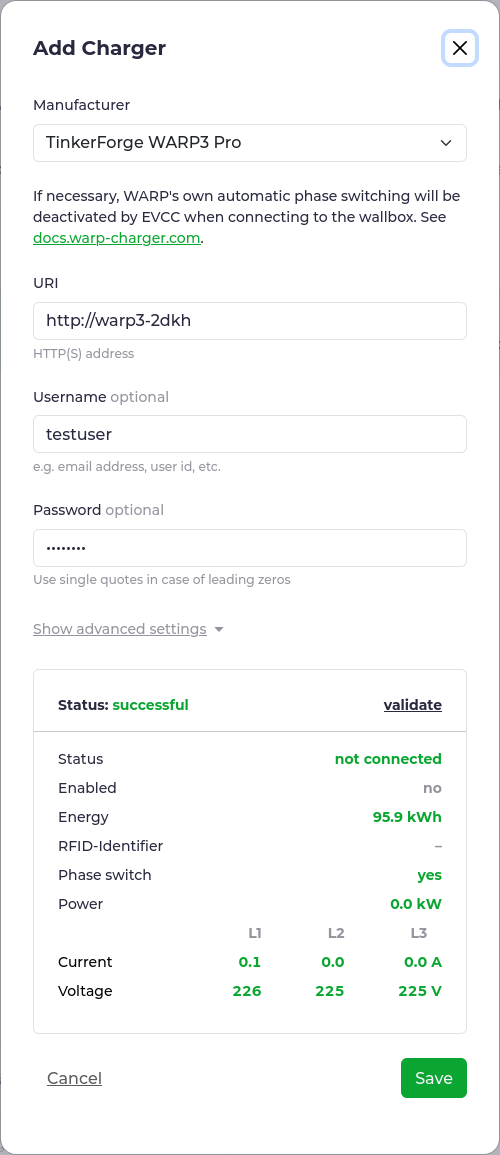
When running evcc configure, you can select TinkerForge WARP Charger Smart or TinkerForge WARP Charger Pro as the charger and note the following:

  • As the IP address or hostname, you must not enter the corresponding value of the charger, but the broker hostname or its IP address configured in the previous section.
  • The topic is the topic prefix set in the MQTT configuration, e.g. warp/ABC. Every message topic begins with this, which you can see with mosquitto_sub -v -t 'warp/#' or mosquitto_sub -v -t 'warp2/#' or mosquitto_sub -v -t 'warp3/#'.
  • If you want to use a WARP Energy Manager for phase switching as described above, you must specify the MQTT topic prefix of the Energy Manager (e.g. wem/XYZ) when evcc configure asks for energymanager.

Simulation of Energy Meters

evcc configure currently only supports the configuration of "real" meters. However, simulated meters can be manually entered into the evcc.yaml file created by evcc configure.

To do this, you must edit the created configuration file (/etc/evcc.yaml) with a text editor of your choice, for example with nano* on the console. If you didn't configure any meters during configuration, the site block of the configuration file should be empty except for the title:

site:
title: My Home
meters:

Above the site block, we now add two simulated energy meters. The first meter (gridmeter) measures the current grid consumption or grid feed-in at the house connection, the second measures the current feed-in from the solar system (pvmeter). We simulate a permanent feed-in of 10 kW and a grid feed-in of 9 kW:

meters:
- name: gridmeter
type: custom
power:
source: script
cmd: /bin/sh -c 'echo -9000'
- name: pvmeter
type: custom
power:
source: script
cmd: /bin/sh -c 'echo 10000'

The added energy meters must then be registered in the site block:

site:
title: My Home
meters:
grid: gridmeter
pv: pvmeter

After a restart with sudo systemctl restart evcc, the EVCC page should display the simulated meters. Real energy meters can be added later with evcc configure.

Here is the complete configuration file (tested with EVCC version 0.95):

# open evcc at http://evcc.local:7070
network:
schema: http
host: evcc.local # .local suffix announces the hostname on MDNS
port: 7070

log: info
levels:
cache: error

interval: 10s # control cycle interval

chargers:
- type: template
template: tinkerforge-warp
host: 192.168.178.72
port: 1883
topic: warp/ABC
timeout: 30s
energymanager: wem/XYZ # EnergyManager MQTT Topic (if installed) (optional)
name: wallbox1

loadpoints:
- title: Garage
charger: wallbox1
mode: off
phases: 3
mincurrent: 6
maxcurrent: 16
resetOnDisconnect: false

meters:
- name: gridmeter
type: custom
power:
source: script
cmd: /bin/sh -c 'echo -9000'
- name: pvmeter
type: custom
power:
source: script
cmd: /bin/sh -c 'echo 10000'

site:
title: My Home
meters:
grid: gridmeter
pv: pvmeter