Remote Access
Introduction
With remote access, you can always access a WARP Charger or WARP Energy Manager from anywhere via my.warp-charger.com. The apps (iOS and Android) use remote access, so it must also be configured for app usage.
How it Works and Privacy
In short, every connection via remote access establishes a separate, encrypted VPN. This VPN has only two participants: the device from which remote access is opened and the WARP Charger/WARP Energy Manager being accessed. This ensures that only you can retrieve data from your charger (not even we can!).
All data, except for your email address and your (freely selectable) username, is stored encrypted on our server. In such a way that even we cannot decrypt this data.
A more detailed description that goes deeper technically can be found in our forum.
Setup
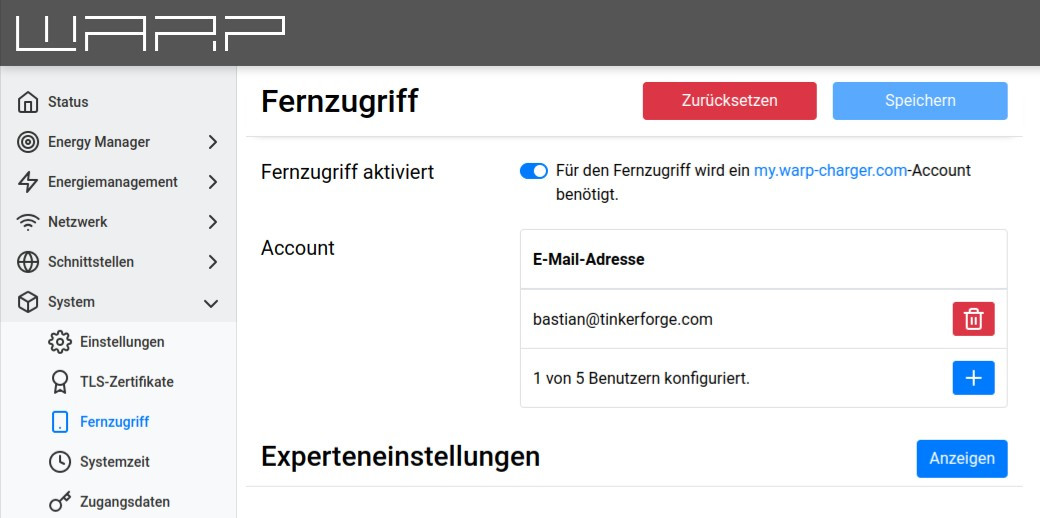
First, an account at my.warp-charger.com is required. This must be created and confirmed.
The device must be restarted after adding the first user. After adding additional users, no restart is necessary.
With Credentials
Open the menu for adding a remote access user via the "+" button, enter the account credentials (the data is not saved) and click "Add".
With Authorization Token
Adding an account with an authorization token is faster, as the authorization token already contains all necessary information.
Authorization tokens can be created on the corresponding subpage.
To register the device using an authorization token, select the "Authorization token" option in the add menu. Then copy the authorization token into the corresponding field and click "Add".
Removing from Remote Access
To temporarily remove a device from remote access, it is sufficient to disable remote access under System -> Remote Access.
If a user is to be permanently removed from the device, this can be done via the "Delete" button next to the email address. The user's access is then already removed. To synchronize this with the server, the device must be restarted. When removing the last user, the device is automatically deregistered from the server.
Alternatively, there is a button for removal on the remote access overview page. Note that while the device is removed from the account and all access via remote access is blocked, remote access on the charger itself remains enabled.
iOS App
Our iOS app is available in the Apple App Store: WARP Charger iOS App
Android App
Our Android app is available in the Android Play Store: WARP Charger Android App
Recovery Page
The recovery page of the charger/Energy Manager can also be accessed via remote access. To do this, first establish a connection to the affected device and then append "/recovery" to the URL.
Technical Details
Ports
Remote access uses an HTTPS connection (port 443/TCP) and a UDP connection (WireGuard) on ports 51820-51825.
Troubleshooting
| Error | Possible Solution |
|---|---|
| The connection is established, but the page remains white | Reduce the MTU in the expert settings |